![{Curr}iculum + [INN]OVATION](http://1.bp.blogspot.com/-1wymldxvTsM/Vuw-WsK0XvI/AAAAAAAAAiU/HbFqrFOnyd4h1-RTAPKp_5VoCksRAl41Q/s1600-r/Currandinn%2Bheader%2B%25282%2529.jpg)
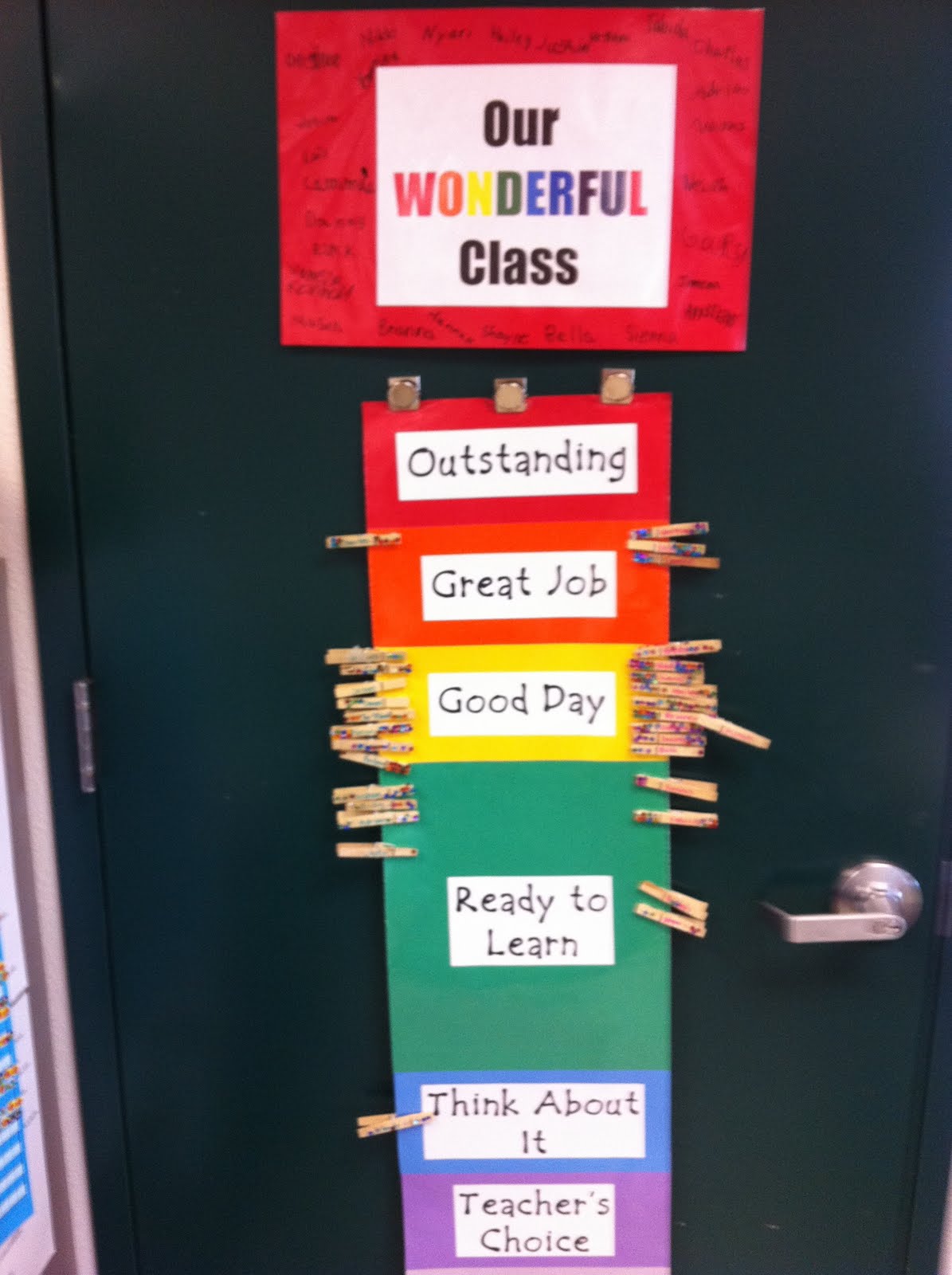
A recent New York Times article posted to the Iowa GEG Google+ Community, a blog article from Teaching Ace on Class Dojo and tasing kids, a question from one of my teachers, and this blog post by Joe Bower (who does an excellent job of citing sources and gathering many different theories on motivation) got me thinking about Class Dojo and other classroom management tools/ strategies/ apps this week. I did have the opportunity to use Class Dojo a few years ago, but because I had a strong classroom management philosophy that did not completely "mesh" with the intended use of Class Dojo, I repurposed the intent of the app to achieve a completely new means to a different end altogether. More on that later...
When it comes to making sure all of your students are engaged with the lesson and learning at high levels in a safe and effective environment, choosing the right classroom management tool/ strategy to match your teaching personality is paramount to student success. When choosing a tool or strategy, let me give some advice that was given to me early in my career, and has made an incredible difference:
 |
| Source: At Whit's End Blog www.atwhitsendblog.blogspot.com |
1) Does the app/ tool/ strategy allow for meaningful conversation, individualized feedback, and periodic reflection for both student and teacher? Or does it help manage a reactive type of relationship?
2) Does the app give your students a voice in the classroom rules? Do students have a significant role in shaping the written norms of the classroom? Or does the app police the rules imposed on the students?
3) Does the app give you time and opportunity to invest in each student personally and strive to make them feel welcome and loved in your classroom? Or does the app simply publicly announce misbehavior and/or positive behaviors?
4) Does the app allow you to model kindness, autonomy, forgiveness, grace, and leadership? Or does it cause you to model harshness, escalation, and indifference?
5) Does the app allow for students to be aware of procedures for misbehavior? Will it allow students to reflect on behavior and have an opportunity to adjust? Or does it impose consequences for misbehavior?
If you are at a point where you're ready to begin using a tool like Class Dojo, or a technique like Behavior Clip charts, or anything similar, take a moment to think about these questions:
1) What is the end result you see happening from adding this tool?
2) Is the tool designed to enhance what you are doing, or detract from it?
3) What are some alternatives that you've looked at? What makes this tool better than any other?
4) Are there specific classroom behaviors or student issues that you are trying to address with this app? What features do you like about this tool?
5) What do you plan to do if the students don't respond to the tool the way you anticipated?
I have some pretty strong personal beliefs when it comes to the debate between intrinsic and extrinsic motivation, and I also know a great teacher will maximize any tool if she feels it helps her students grow and learn in significant ways. Personally, I wouldn't ever use a tool for the sake of the tool; rather, I want to do things for the sake of each student.
When I had the opportunity to use Class Dojo, I took the app to my students and had them brainstorm ways we might want to use the app in class. A few students liked the app's design, including the little monsters, but were wary of the "points for behavior" system. This led to a great discussion about our classroom and what kind of environment we had- and how using Class Dojo the way it was intended did not fit our shared values for the class. A student then suggested something fun- to use Class Dojo as a point tracking system for an end of the day trivia/ exit ticket contest. I would ask questions, possibly from trivia cards (like you find in Trivial Pursuit games), or from essential skills we learned that day. Students would give me answers to the questions; sometimes students would answer after a group discussion, other times they would take a guess individually. There were a few times when I had students write their answers down, and add their own points. Occasionally, I'd have them add a point for each standard they had met that week.

At the end of the week, we'd look at the points tallied, talk about our answers, and decide who the winner was. Many times it wasn't the student with the most points, but rather the student who gave the most to the class that week. I'd then let them choose their prize- who got to use my teacher's chair for the week. I was most proud when the winner would choose another student in the class to use the chair- just to let them know we valued everyone in our class.
Was this the best way to use Class Dojo? I'm not completely sure. I do know, however, it wasn't the app that created that environment, or even sustained it. It was us choosing to be better for each other.
Resources:
- Pinterest Find: Colorful Behavior Management Charts by Social Work, Special Ed, and Counseling resources Blog
-Alternative Clip Charts by Teaching Ace Blog
- On Using and Not Using Class Dojo: Idealogical Differences by the Larry Cuban School Reform and Classroom Practice Blog
- Class Dojo Resources page
- A Parent's Review of Class Dojo on the Getting Smart Blog